Friday, 14 August 2015

Windows 8 : Configure Personal Mail on Windows 8 Device

By default when the Mail app is launched it prompts to sign into a Microsoft account. See the screenshot below...


We need to disable this prompt by enabling a GPO manually. The GPO will then allow to configure an Enterprise account. See the screenshot below...


To enable the Group Policy manually on the Windows 8 device go to
Computer Configuration -> Administrative Templates -> Windows Components -> App runtime -> Allow Microsoft accounts to be optional (Enable this policy)


Configuration Steps :

1. On the Start screen, tap or click Mail.


2. You will now be prompted to setup an Enterprise Account, click on Show more details


3. Populate these details and click on Connect.

• Email Address - your mail address
• Server Address – You mail address server
• Domain - to be left blank
• User Name - your mail address
• Password - Your mail address password


4. Click on Enforce these policies. Mails will now sync with the device.


5. To access Calendar, on the Start screen tap or click Mail


Labels: , , ,

Saturday, 24 January 2015

Master Group Policy (MGP2) : Enable User to press CTRL+ALT+DEL before logging on to Windows

You may have seen in Domain Network that user has to press CTRL+ALT+DEL Keys before log in into windows system, if worked on any.
If you want to setup the same thing on your personal computer, you can do so following this method.

Step 1 - Open Run Prompt.
- Type secpol.msc and hit enter.
Or 
Simply Type "Local Security Policy" on Start Menu Search Box.
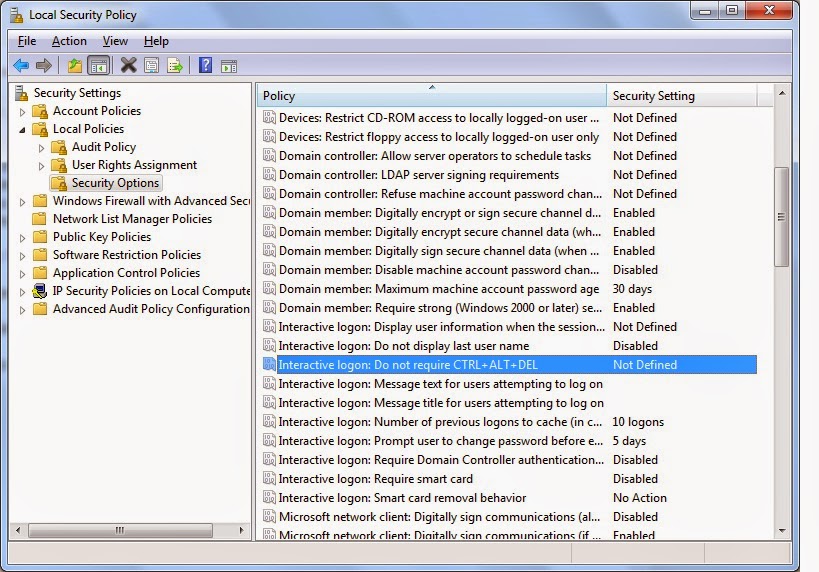
Go to the Path as below given...


Enable the "Interactive logon: Do not require CTRL+ALT+DEL" Option

Now close the Window and Restart the Computer.

Now windows will prompt user to press CTRL+ALT+DEL before logging on to Windows. 

Done...

If you have any doubt or faced any difficulty, simply drop a comment...


Labels: ,

Master Group Policy (MGP1) : Disable User Names on Windows Login Screen

To disable user names displayed while you login into windows system. First you have to update the local security policy. Here is complete guide how you can do this...

Step 1 - Open Run Prompt.

- Type secpol.msc and hit enter.

Or Simply Type "Local Security Policy" on Start Menu Search Box.

Go to the Path as below given...


Enable the "Interactive logon: Do not display last user name" Option

Not Close the Window and Restart you system. Now you will be asked for user name and password. You have to fill both manually.

If you have any doubt or faced any difficulty, simply drop a comment...


Labels: ,

Thursday, 13 December 2012

How to Enable or Disable Store App in Windows 8


Windows Store has ability to download new applications on Windows 8 PC. Are you tired of removing application from your pc which are installed by someone else ? Did you know you can block people to add new application to your PC.

To do this you must Login through your Administrator Account.  and then Follow these steps :

Step 1. Open Run Program Prompt. Type "gpedit.msc" and press enter.

Step 2. In Left Lane Click on the "User Configuration" > Administrative Templates > Windows Components > Open Store Menu". 

Step 3. In Right Side window open " Turn off the Store application" option.


Step 4. If you want to Disable Store App than Select Enable and click on OK.

If you want to Enable Store App, Select Disable or Not Configured.

Step 5. Done! Now close the Group Policy Editor Window. 

 Now when you start Store App on your Windows 8, you will get this message " Windows Store isn't available on this PC. Contact your system administrator for more information."

Labels: , , , , , ,